
NEET PG Photo & Document Tools — How to Use (Complete Guide)
Passport photo, signature, thumb, PDF compress, and unlock — step-by-step for NBEMS registration uploads.
NEET PG (NBEMS) registration needs several uploads: passport photo, real-time capture, signature, left thumb impression, and certificate PDFs. MockX free tools help you prepare these files before you open the official portal.
Open the tools hub
Go to NEET PG Photo & Document Tools. Use the tabs:
- Photograph — bottom crop + 51–79 KB JPG
- Signature & Thumb — prepare scan for upload
- PDF ≤ 1 MB — compress certificates
- Unlock PDF — remove password, then compress
Or open single pages from the footer (NEET PG TOOLS).
How to use each tool (quick)
| Tool | When you need it | Link |
|---|---|---|
| Passport photo crop | Face ratio < 15%, wrong size/format | Open |
| Signature & thumb | Scan too large / wrong type | Open |
| PDF compressor | Certificate over 1 MB | Open |
| Unlock PDF | Password-protected PDF won’t compress | Open |
Tips that save time
- Drag and drop files onto the upload box (or click to browse).
- Keep the browser tab open while PDF compression runs — large files need several passes.
- Unlock password PDFs before compressing.
- Photo export targets 51–79 KB (inside the official 50–80 KB band).
Detailed guides
- Face ratio check failed — fix ≥15%
- How to crop NEET PG passport photo
- Signature & left thumb upload prep
- Compress PDF under 1 MB
- Unlock password-protected PDF
FAQs
Q1: Do MockX tools upload my files to a server?
A: No. Processing runs in your browser on your device.
Q2: Can I use these for NEET UG too?
A: Specs differ by exam. Always match the size/format rules in your information bulletin. These tools are tuned for common NEET PG / NBEMS-style limits.
Q3: What if my PDF is password protected?
A: Unlock it first on the Unlock PDF page, then compress.
Recent NEET Updates
Stay ahead in your preparation with our latest blogs:

Reaching the Age of Adolescence Class 8 Science | Rapid Revision in 10 Minutes | NCERT
Step through it in the video below
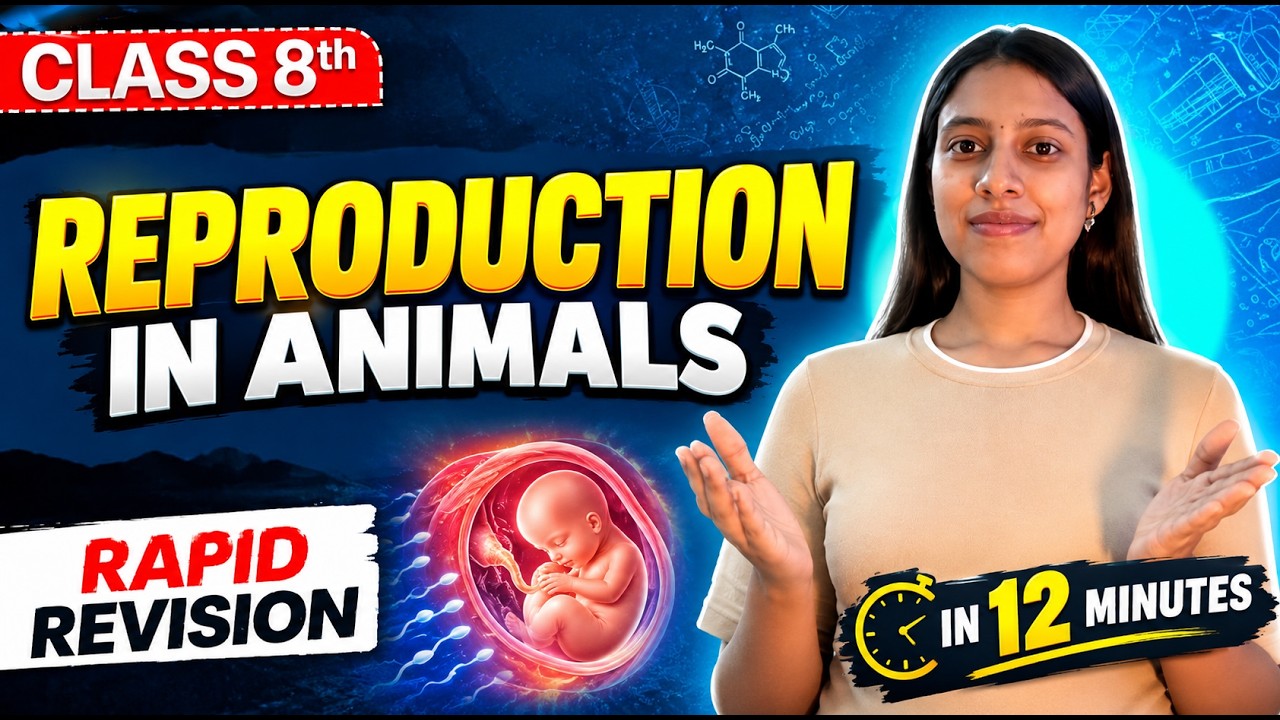
Reproduction in Animals Class 8 Science | Rapid Revision in 10 Minutes | NCERT
Step through it in the video below
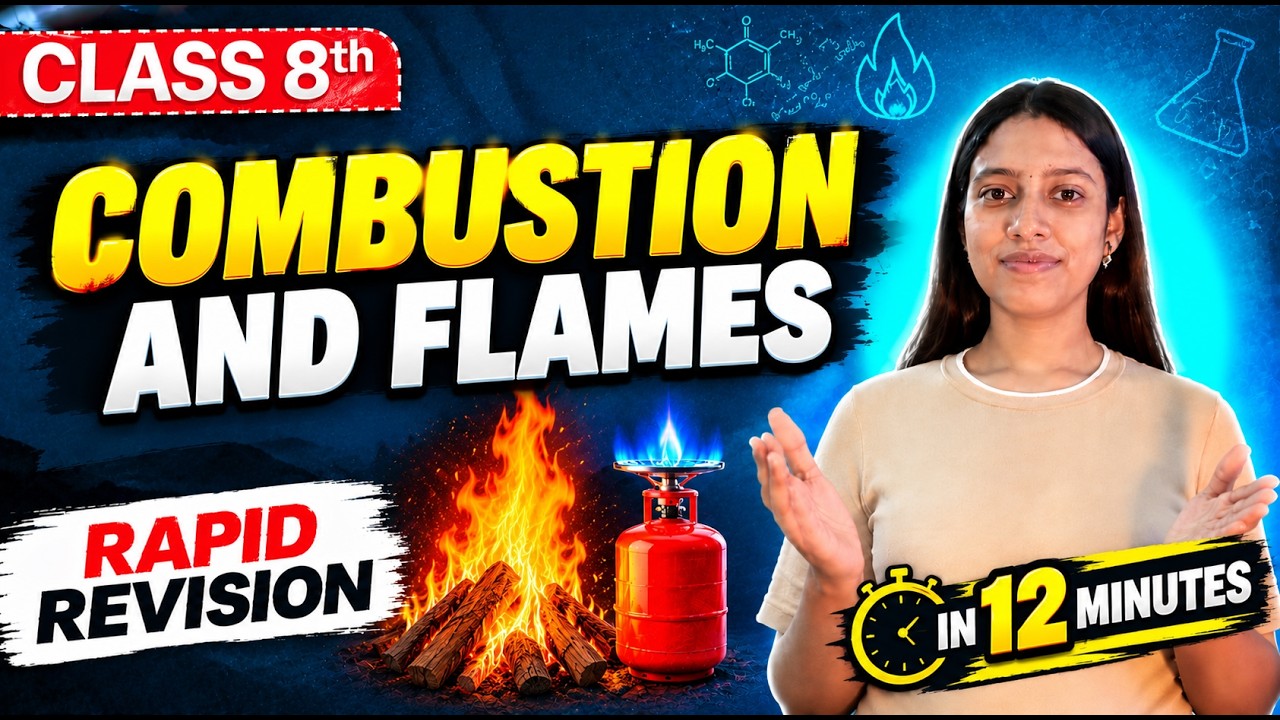
Combustion and Flame Class 8 Science 🔥 | Rapid Revision in 10 Minutes | NCERT
Step through it in the video below
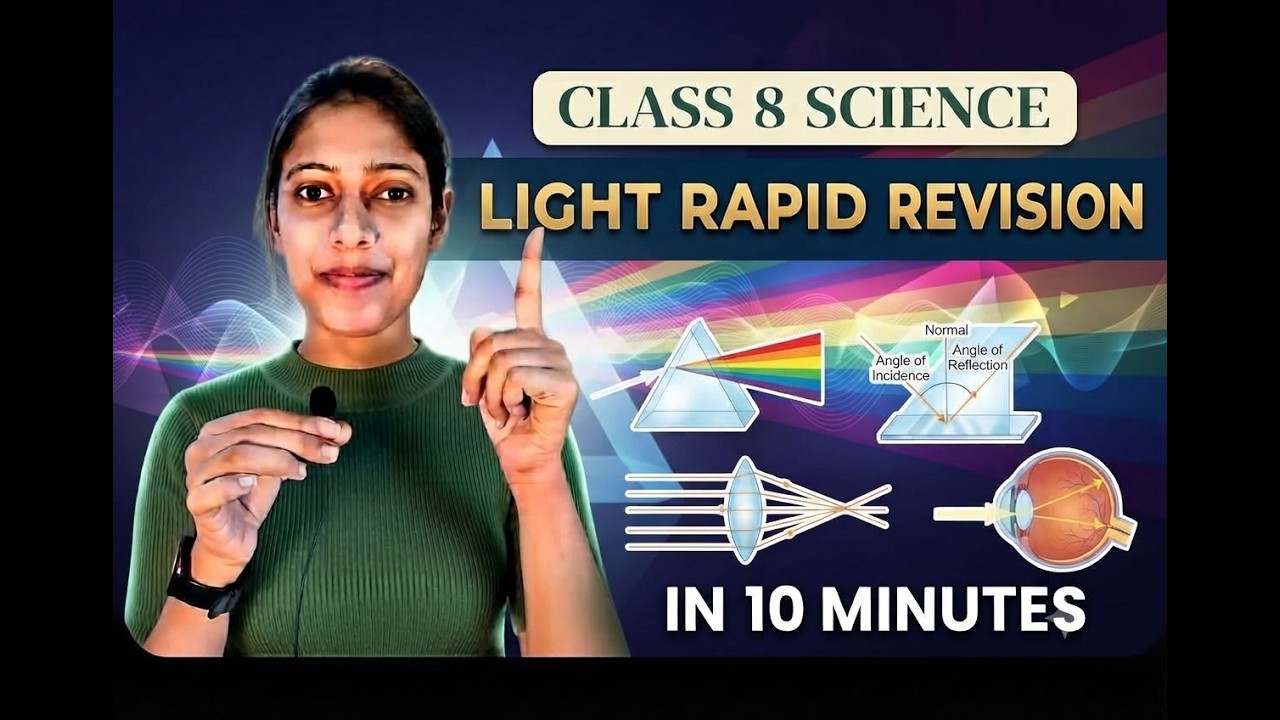
Light Class 8 Science | Rapid Revision in 10 Minutes | NCERT Class 8 Light | Important Concepts
Step through it in the video below
Ready to practice? Get the MockX App
Everything you need for NEET 2026 — available on Android & iOS.